> For the complete documentation index, see [llms.txt](https://yams.yassrobotics.com/llms.txt). Markdown versions of documentation pages are available by appending `.md` to page URLs; this page is available as [Markdown](https://yams.yassrobotics.com/documentation/tutorials/project-setup.md).
# Create a project and install YAMS
Make the robot project that every tutorial starts from.
Every tutorial starts from the same place: a WPILib command based project with YAMS installed. This page makes one.
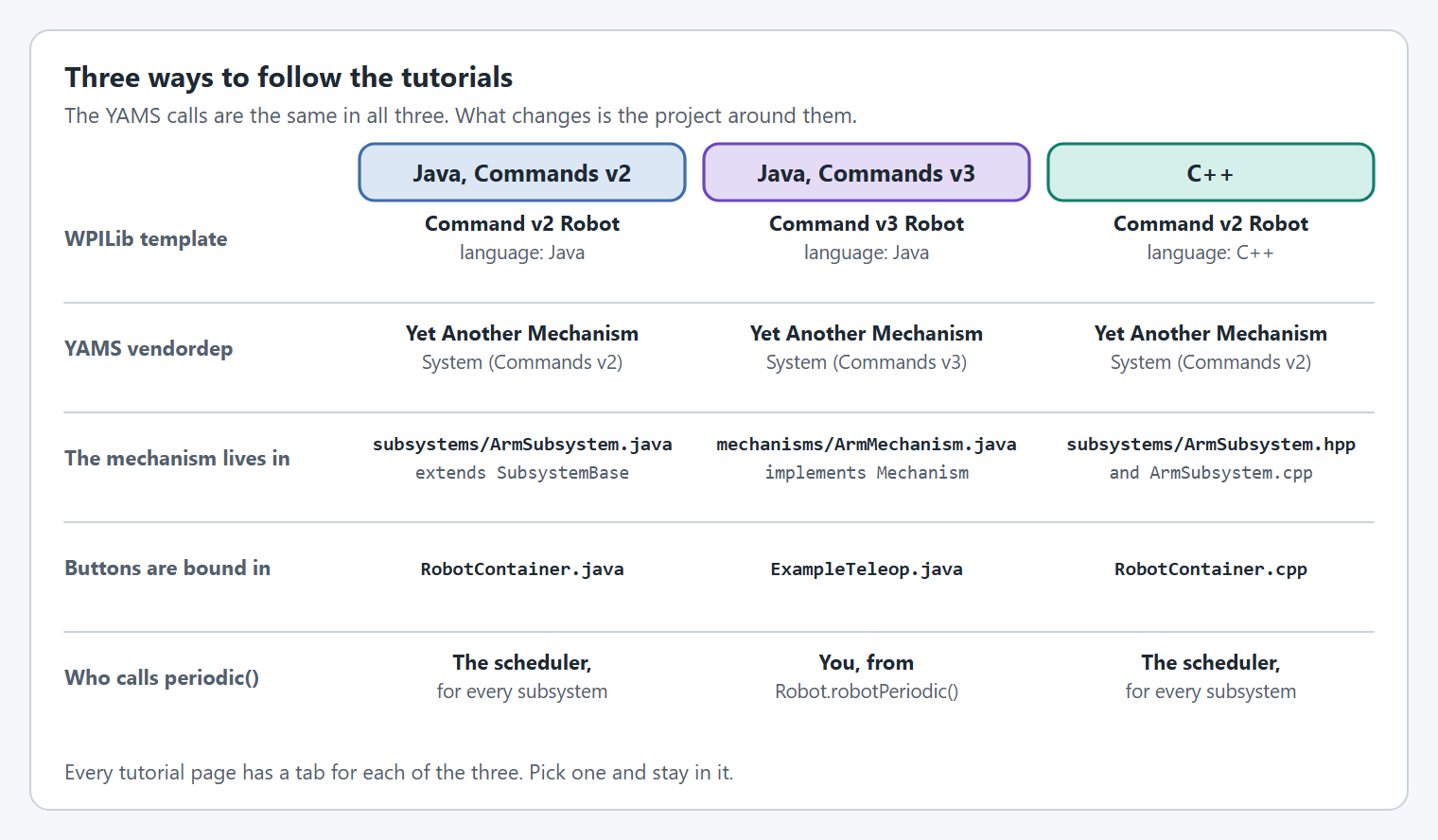
Each tutorial page has a tab for **Java with Commands v2**, **Java with Commands v3** and **C++**. Pick the one you want now, because it decides which project template and which YAMS vendordep you need.
The YAMS calls are the same. The project around them is what changes.
{% hint style="success" %}
Not sure which to pick? Use **Java, Commands v2**. It is what most teams use today, and most of the other pages in these docs show it first.
{% endhint %}
## Create the project
Bring up the Visual Studio Code command palette with Ctrl+Shift+P and type "WPILib". Select **WPILib: Create a new project**.
This brings up the New Project Creator:
{% tabs %}
{% tab title="Java, Commands v2" %}
1. Click on **Select a project type (Example or Template)**.
2. Select **Template**, then **Java**, then **Command v2 Robot**.
{% endtab %}
{% tab title="Java, Commands v3" %}
1. Click on **Select a project type (Example or Template)**.
2. Select **Template**, then **Java**, then **Command v3 Robot**.
{% endtab %}
{% tab title="C++" %}
1. Click on **Select a project type (Example or Template)**.
2. Select **Template**, then **C++**, then **Command v2 Robot**.
{% endtab %}
{% endtabs %}
Then, whichever you picked:
3. Click on **Select a new project folder** and choose where to keep the project.
4. Fill in **Project Name**.
5. Enter your **Team Number**, so that you can deploy to your robot.
6. Check **Enable Desktop Support**, so that you can run the simulation.
Filled in, it looks something like this. The screenshots on this page show the Java Commands v2 choice.
You now have a command based robot project.
## Install YAMS
YAMS ships as two vendordeps, one for each WPILib command framework. Install only the one for your tab: the two conflict with each other.
Click on the **WPILib logo** in the left bar to open the vendor library list.
{% tabs %}
{% tab title="Java, Commands v2" %}
Scroll down to **Yet Another Mechanism System (Commands v2)** and click **Install**.
If it is not in the list, open the command palette with Ctrl+Shift+P, run **WPILib: Manage Vendor Libraries**, choose **Install new libraries (online)** and paste `https://cdn.yassrobotics.com/yams_commands2.json`.
{% endtab %}
{% tab title="Java, Commands v3" %}
Scroll down to **Yet Another Mechanism System (Commands v3)** and click **Install**.
If it is not in the list, open the command palette with Ctrl+Shift+P, run **WPILib: Manage Vendor Libraries**, choose **Install new libraries (online)** and paste `https://cdn.yassrobotics.com/yams_commands3.json`.
{% endtab %}
{% tab title="C++" %}
Scroll down to **Yet Another Mechanism System (Commands v2)** and click **Install**. The Commands v2 vendordep holds both the Java and the C++ library.
If it is not in the list, open the command palette with Ctrl+Shift+P, run **WPILib: Manage Vendor Libraries**, choose **Install new libraries (online)** and paste `https://cdn.yassrobotics.com/yams_commands2.json`.
{% endtab %}
{% endtabs %}
See [Installation](/documentation/readme.md#installation) for the offline install.
## Install your motor controller's library
YAMS drives the vendor's own motor controller objects, so the vendor's library has to be installed too. Install it from the same list:
| Tutorial | Hardware | Vendor library |
| ------------------------------------------------------------------------------------------------------------------------------------------------------------ | --------------------------------- | -------------------- |
| [Arm](/documentation/tutorials/arm.md), [Elevator](/documentation/tutorials/elevator.md), [Shooter/FlyWheels](/documentation/tutorials/shooter-flywheels.md) | `SparkMax` | REVLib |
| [Double FlyWheel](/documentation/tutorials/double-flywheel.md) | `TalonFX` | Phoenix 6 |
| [Swerve Drive](/documentation/tutorials/swerve-drive.md) | `SparkMax`, `CANcoder`, `Pigeon2` | REVLib and Phoenix 6 |
## Where the tutorials put things
{% tabs %}
{% tab title="Java, Commands v2" %}
The template gives you `RobotContainer.java` and a `subsystems` folder. Each tutorial adds one subsystem class to `subsystems`, and then creates it and binds its buttons in `RobotContainer.java`.
A subsystem `extends SubsystemBase`, so the command scheduler calls its `periodic()` and `simulationPeriodic()` for you.
{% endtab %}
{% tab title="Java, Commands v3" %}
The template gives you `Robot.java`, `ExampleTeleop.java` and a `mechanisms` folder. Each tutorial adds one mechanism class to `mechanisms`, creates it in `Robot.java`, and binds its buttons in `ExampleTeleop.java`.
A Commands v3 mechanism `implements Mechanism`. Nothing calls a periodic method on it for you, so each tutorial gives the class a `periodic()` and a `simulationPeriodic()`, and `Robot.java` calls them:
* `Robot.robotPeriodic()` runs every loop, on the robot and in simulation. It calls each mechanism's `periodic()`, runs the scheduler, and then publishes the scheduler so that a dashboard shows which commands are running.
* `Robot.simulationInit()` runs once, when the simulation starts. It starts each mechanism's `simulationPeriodic()` in its own `Notifier`, which runs it every loop, in simulation only.
With an arm and an elevator on the robot, `Robot.java` ends up with this:
```java
private final Scheduler scheduler = Scheduler.getDefault();
// Each mechanism's simulation Notifier, kept so that it is not garbage collected.
private final List simulationNotifiers = new ArrayList<>();
@Override
public void robotPeriodic() {
arm.periodic();
elevator.periodic();
scheduler.run();
Telemetry.log("Scheduler", scheduler, Scheduler.proto);
}
@Override
public void simulationInit() {
// Runs once, when the simulation starts.
// Run each mechanism's simulation in its own Notifier, every robot loop.
startSimulation("Arm", arm::simulationPeriodic);
startSimulation("Elevator", elevator::simulationPeriodic);
}
/** Runs a mechanism's simulation in its own Notifier, every robot loop period. */
private void startSimulation(String name, Runnable simulationPeriodic) {
Notifier notifier = new Notifier(simulationPeriodic);
notifier.setName(name + " Simulation");
notifier.startPeriodic(getPeriod());
simulationNotifiers.add(notifier);
}
```
Forget the first and the mechanism publishes no telemetry and ignores live tuning. Forget the second and it never moves in simulation.
{% hint style="success" %}
Run each mechanism's simulation in its own `Notifier`, as above, instead of calling it from `Robot.simulationPeriodic()`. The simulation then runs on its own thread, so it does not add to the time each robot loop takes, and every mechanism keeps stepping at a steady rate even when a loop runs long.
This needs a YAMS release newer than 2026.10.19, which makes the shared battery simulation safe to use from several threads. With an older release, call each mechanism's `simulationPeriodic()` from `Robot.simulationPeriodic()` instead.
With AdvantageKit, keep calling it from `Robot.simulationPeriodic()`, so that the simulation stays in step with the log.
{% endhint %}
YAMS for Commands v3 lives in `yams.commands3` where the Commands v2 pages say `yams.commands2`. Everything in `yams.core` is shared.
{% endtab %}
{% tab title="C++" %}
The template gives you `RobotContainer.hpp`, `RobotContainer.cpp`, and a `subsystems` folder under both `src/main/include` and `src/main/cpp`. Each tutorial adds one subsystem as a header and a source file, and then creates it and binds its buttons in `RobotContainer`.
The C++ library uses Commands v2. Its methods have the same names as the Java ones with a capital first letter, such as `WithGearing` or `Run`. Where a name is different, the tutorial says so.
{% endtab %}
{% endtabs %}
## Pick a tutorial
* [Arm](/documentation/tutorials/arm.md)
* [Elevator](/documentation/tutorials/elevator.md)
* [Shooter/FlyWheels](/documentation/tutorials/shooter-flywheels.md)
* [Double FlyWheel](/documentation/tutorials/double-flywheel.md)
* [Swerve Drive](/documentation/tutorials/swerve-drive.md)